
What’s New? Introducing 2-Stage Bidding For New Product Launch!
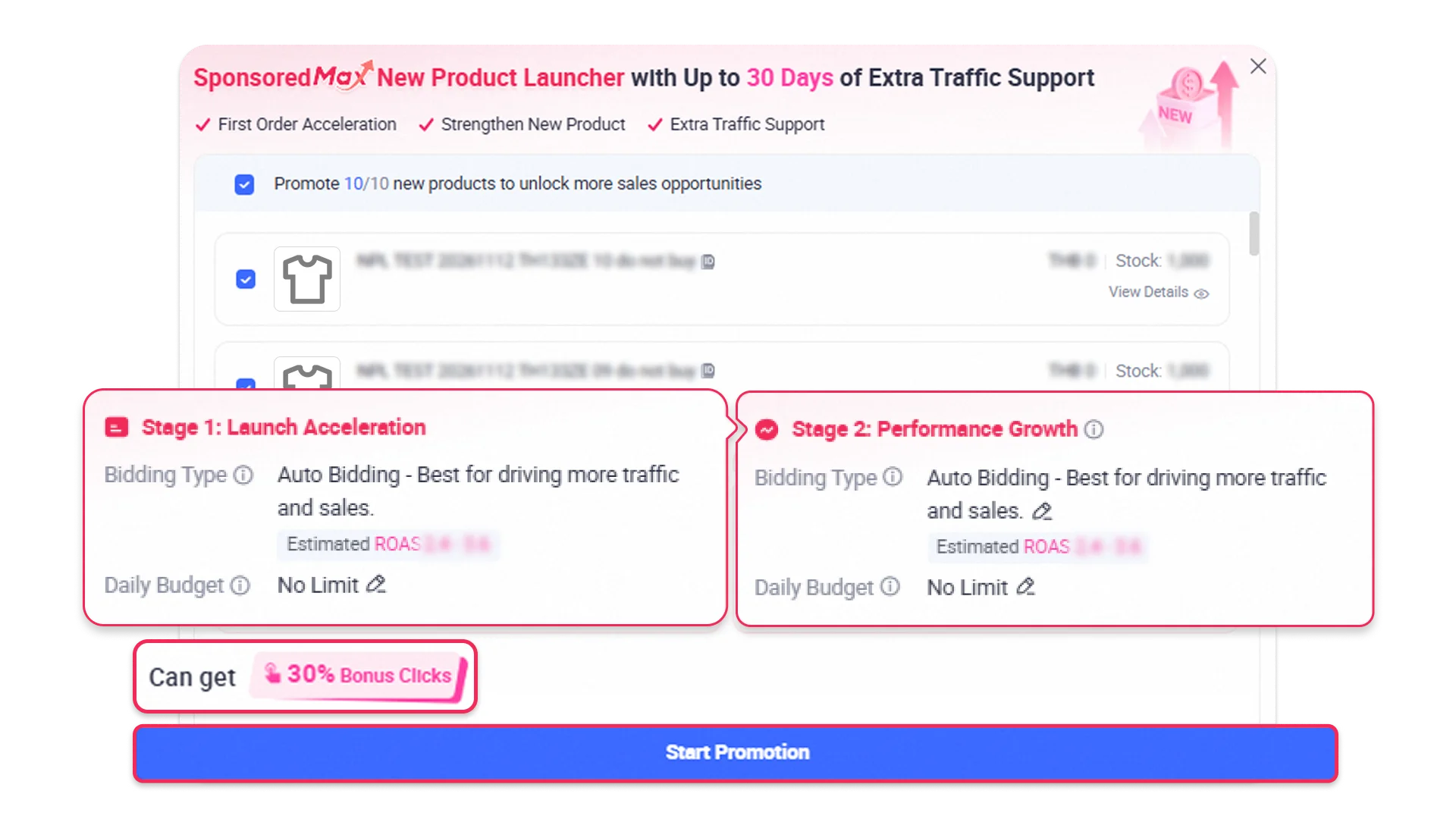
✅ Stage 1: Launch Acceleration
Increase new product visibility and orders with Auto Bidding, plus extra traffic support at launch.
• Get extra traffic support for your new products.
• Gain visibility and orders faster at launch with Auto Bidding.
✅ Stage 2: Performance Growth
Support continued sales growth and optimize returns with flexible bidding options.
• Continue sales growth and optimize returns with flexible bidding options.
• Sustain early sales momentum beyond launch.
How This Upgrade Benefits You
🚀 Break Through New Product Launch Challenges
Get 30% bonus clicks when you apply the recommended budget at launch to help increase new product visibility and capture early sales opportunities, plus extra traffic support!
🎯 Accelerate Early Sales Growth
Help new products gain traction faster with Auto Bidding, which automatically optimizes bids to drive traffic and capture early orders.
📈 Sustain Growth with Flexible Bidding
Choose between Auto Bidding and Target ROAS based on your campaign goals to support continued sales growth and optimize returns as your products gain traction.
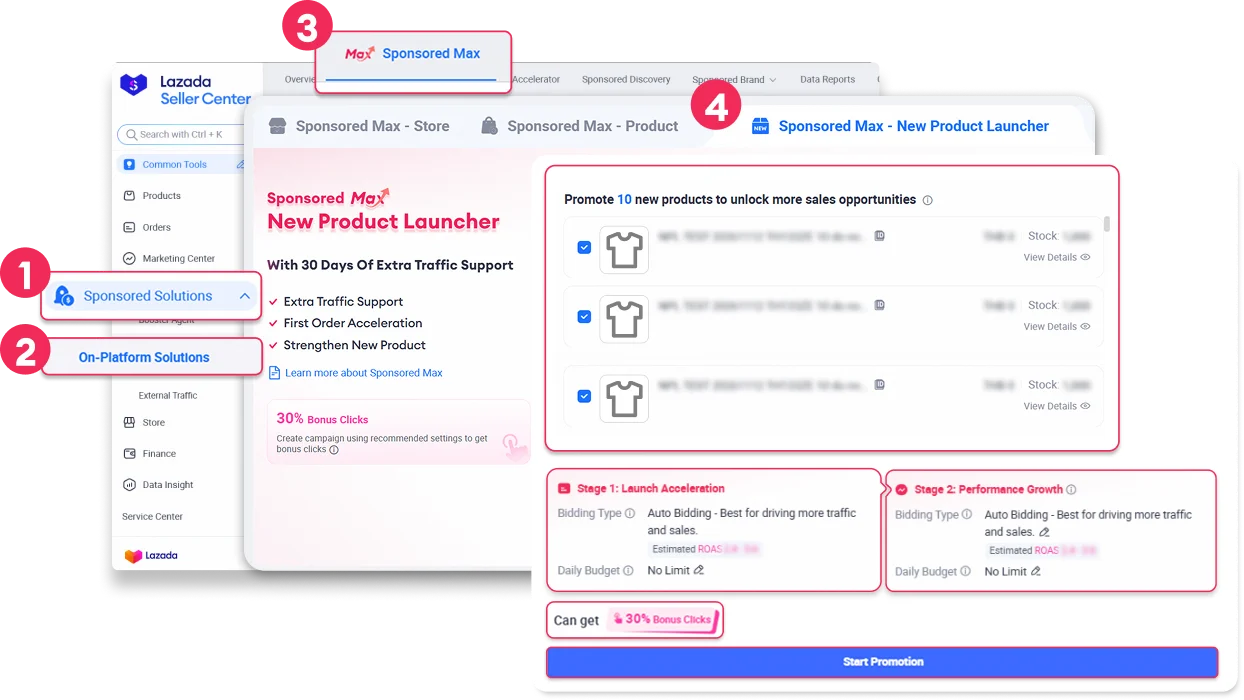
Step 1: Access Sponsored Max – New Product Launcher
1.Log in to Seller Center.
2.Go to Sponsored Solutions > On-Platform Solutions > Sponsored Max.
3.Navigate to Sponsored Max – New Product Launcher.
4.If you have eligible new products, the system will automatically select them for promotion to help accelerate their launch.

While your campaign is in Stage 1, you can also set up your Stage 2 bidding preferences in advance. Once the transition criteria are met, your campaign will automatically move to Stage 2 using your selected bidding settings.
✅ Stage 2: Performance Growth
– Bidding Type: Choose Auto Bidding or Target ROAS based on your campaign goals.
– Daily Budget: Uses the same budget as Stage 1 by default. You can adjust it once your campaign enters Stage 2.
Step 2: Configure Your Campaign Settings
Your campaign will automatically start in Stage 1: Launch Acceleration, with Auto Bidding as the only available bidding type to help new products gain early traffic, visibility, and sales opportunities.
✅ Stage 1: Launch Acceleration
– Bidding Type: Auto Bidding – Automatically optimizes bids to help new products gain early traffic and orders.
– Budget: Choose Unlimited Budget or set a Custom Budget.
✨ Enjoy 30% Bonus Clicks!
Get 30% bonus clicks during Stage 1 when you select Unlimited Budget or set a budget higher than the platform-recommended amount.
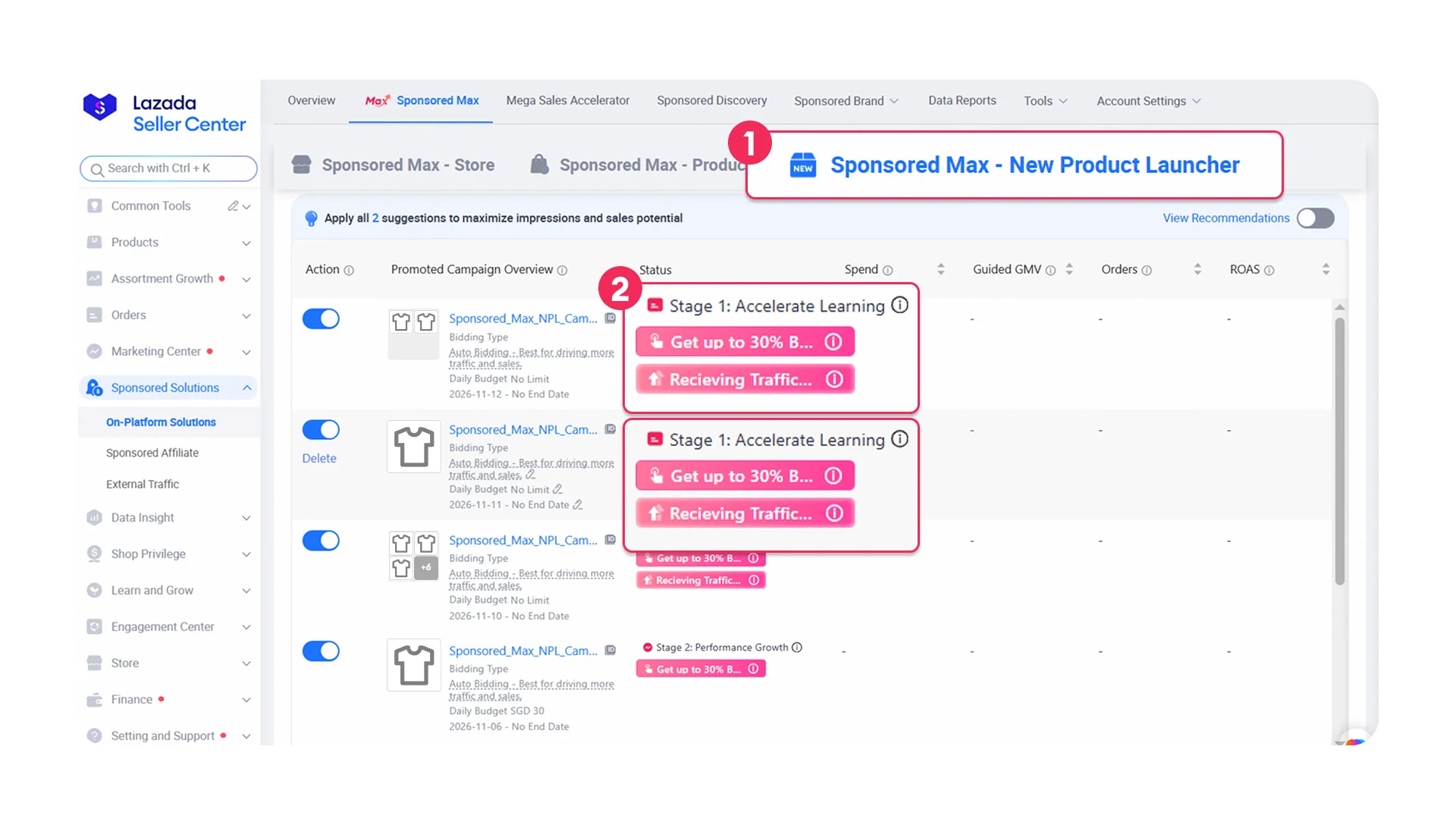
Step 3: Check Your Campaign Stage
1.Go to Sponsored Max – New Product Launcher > Campaign.
2.Check the Stage Status label to see whether your campaign is in Stage 1: Launch Acceleration or Stage 2: Performance Growth.
📌 When Will Your Campaign Enter Stage 2: Performance Growth?
Your campaign will automatically move from Stage 1 to Stage 2 once either of the following conditions is met:
1. After 7 days from campaign creation, with at least 3 cumulative orders;
OR
2. After 30 days from campaign creation, regardless of the number of orders.
Note: Once your campaign enters Stage 2, it cannot return to Stage 1.
FAQ
Q: How many Sponsored Max – New Product Launcher campaigns can I create?
A: You can create up to 100 Sponsored Max – New Product Launcher campaigns, with a maximum of 100 products per campaign.
Q: Can I add or remove products from a Sponsored Max – New Product Launcher campaign?
A: Yes. You can add eligible products to your campaign, and newly added products will receive their own 30-day extra traffic support period.
However, once a product is removed from a Sponsored Max – New Product Launcher campaign, it cannot be added to another Sponsored Max – New Product Launcher campaign.
Q: Which products are eligible for Sponsored Max – New Product Launcher?
A: Eligible products listed within the last 60 days can be promoted through Sponsored Max – New Product Launcher.
Q: How long will my product receive extra traffic support?
A: Each eligible product receives up to 30 days of extra traffic support from the time it starts promotion.
Q: Can the same product be promoted in multiple Sponsored Max – New Product Launcher campaigns?
A: No. Each eligible product can only be promoted in one Sponsored Max – New Product Launcher campaign.
Products included in a Sponsored Max – New Product Launcher campaign will also be excluded from Sponsored Max – Store and Sponsored Max – Product campaigns during the promotion period.
Q: What happens if I pause a product during its 30-day extra traffic support period?
A: The 30-day extra traffic support period continues while the product is paused.
When you resume promotion, the remaining support period will continue. The support period will not restart or extend.
Q: How does the 2-Stage Bidding journey work?
A: Every Sponsored Max – New Product Launcher campaign starts in Stage 1: Launch Acceleration, where Auto Bidding and extra traffic support help new products gain visibility and capture early orders.
Once the transition criteria are met, your campaign automatically moves to Stage 2: Performance Growth, where you can continue optimizing performance with flexible bidding options, including Auto Bidding or Target ROAS.
Q: Can I set up Stage 2 while my campaign is still in Stage 1?
A: Yes. You can configure your Stage 2 bidding preferences in advance while your campaign is still in Stage 1.
Once the transition criteria are met, your campaign will automatically move to Stage 2 using your selected bidding settings.
Ready to Launch Your New Products?
Give your new products a stronger start with Sponsored Max – New Product Launcher! Gain early visibility, capture sales opportunities, and sustain growth with flexible bidding options.
Currently available to selected sellers only. If you have any questions, please contact your Key Account Manager.
🚀 [Start Your Sponsored Max – New Product Launcher Campaign]
Country | View on Desktop |
|---|---|
Malaysia | |
Philippines | |
Singapore | |
Thailand | |
Vietnam | |
Indonesia |