Lazada Sponsored Solutions: Auto Budget Increase

Auto Budget Increase helps automatically increase your campaign budget when performance is strong and your budget is running low. With the latest enhancement, the feature is now smarter, more flexible, and supports wider campaign coverage to help you maintain momentum, maximize campaign opportunities, and ensure your campaigns keep running smoothly without missing potential sales.

What’s New

– Smarter Campaign Protection
Auto Budget Increase spots low budget early and tops up automatically, helping ensure your high-potential campaigns do not stop running due to insufficient budget.

– Smarter Campaign Selection
Auto Budget Increase automatically selects high-performing campaigns* for budget increases to help maximize ROAS.

– Complete Coverage for Sponsored Max
Auto Budget Increase now supports both Sponsored Max – Store and Sponsored Max – Product (including Legacy campaign)

*High-performing campaigns are identified based on these performance criteria:
– For Target ROAS campaigns:
The campaign’s ROAS from the previous 3 days has reached at least 80% of your target ROAS.
– For other campaigns:
The campaign’s ROAS yesterday has reached or exceeded 80% of its average ROAS over the past 3 days, excluding today.

Separate Criteria for Mega Sales Period

You can now set separate budget increase criteria for Mega Sales Periods.
This gives you more flexibility to adjust your budget strategy during high-traffic campaign periods, when traffic and sales opportunities may increase significantly.

Remark: Mega Sales Periods follow the MSA campaign schedule, including Double-Digit, Mid-Month, Payday, and other special sales periods. These Mega Sales settings apply automatically during these periods, regardless of whether you joined MSA.
How to Turn On Auto Budget Increase

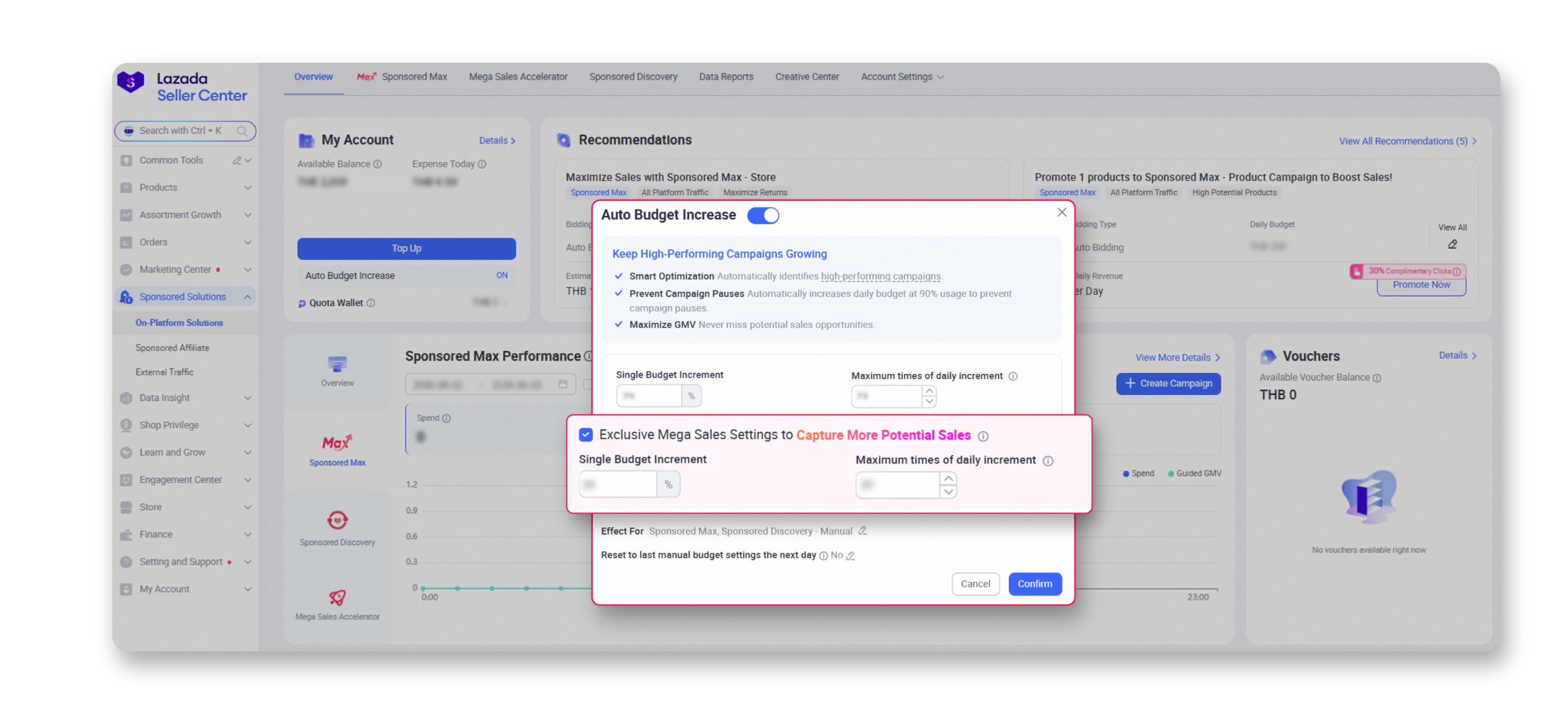
1. Go to Lazada Seller Center > Sponsored Solutions > On-platform Solutions.
2. Navigate to the My Account section and find Auto Budget Increase.
3. Toggle Auto Budget Increase on or off.
4. Set the Single Budget Increment to define the percentage increase for each automatic budget increment.
5. Set the Maximum Times of Daily Increment to define how many times the budget can be increased per day, per campaign.
6. Select the campaign type you want the setting to apply to.
7. Toggle Daily Reset to Last Manual Budget on or off. When enabled, the campaign budget will reset to the last manually set budget on the next day.
How It Works

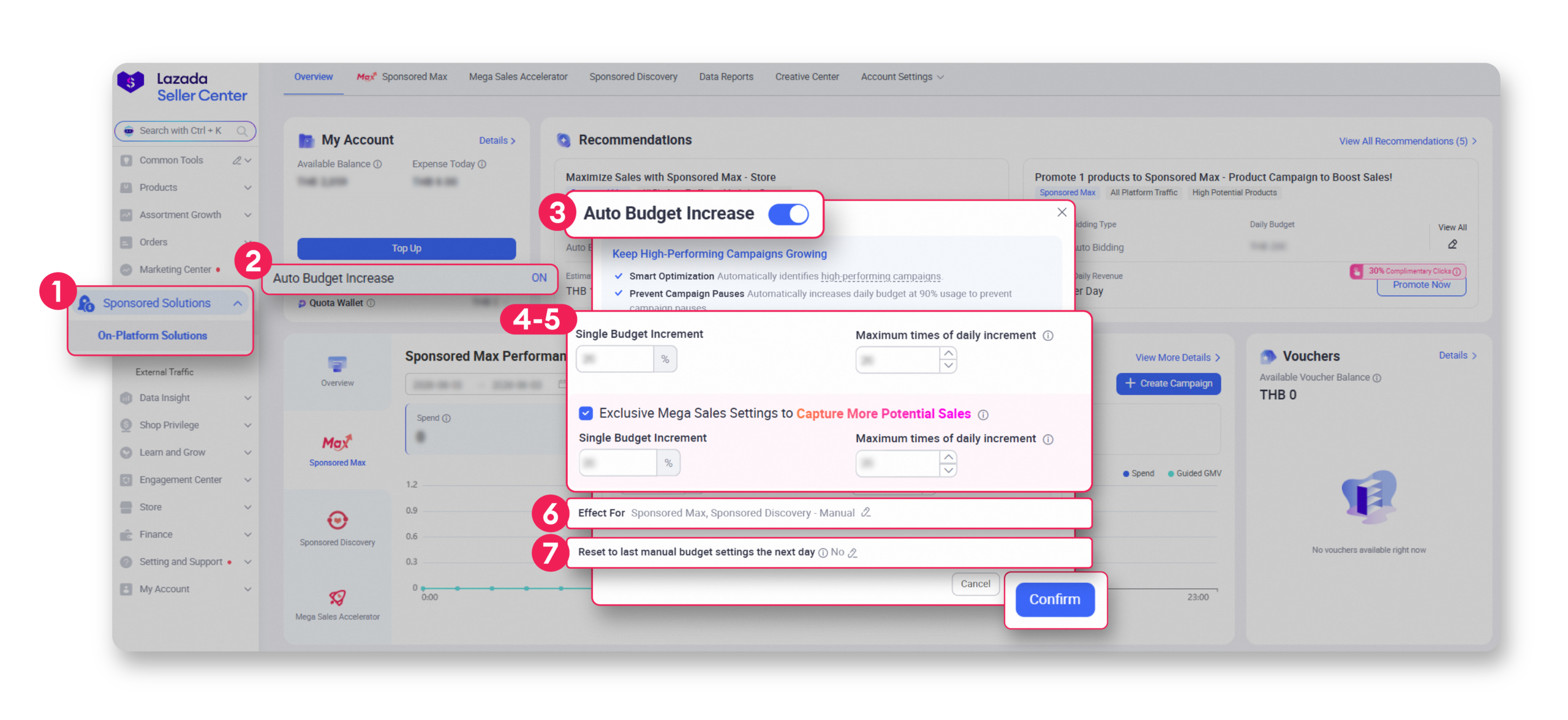
Auto Budget Increase will be triggered when a campaign meets both of the following criteria:
1. The campaign is identified as a high-performing campaign.
2. The campaign budget reaches 90% of its daily budget cap.

Once both criteria are met, the system will automatically increase the campaign’s daily budget cap based on your selected Single Budget Increment and Maximum Times of Daily Increment settings.

Example Calculation:

1. Seller sets Auto Budget Increase as follows:
Single Budget Increment: 20%
Maximum Times of Daily Increment: 5 times
Effect For: Sponsored Max – Product
2. Seller has Sponsored Max – Product Campaign A with the following budget setting:
Initial Daily Budget: 20 SGD
3. When Campaign A is identified as a high-performing campaign and reaches 90% of its daily budget cap, Auto Budget Increase will automatically increase the daily budget by 20%.
4. In this example, both conditions are met 5 times within the same day

Example Calculation:

1. Seller sets Auto Budget Increase as follows:
Single Budget Increment: 20%
Maximum Times of Daily Increment: 5 times
Effect For: Sponsored Max – Product
2. Seller has Sponsored Max – Product Campaign A with the following budget setting:
Initial Daily Budget: 20 SGD
3. When Campaign A is identified as a high-performing campaign and reaches 90% of its daily budget cap, Auto Budget Increase will automatically increase the daily budget by 20%.
4. In this example, both conditions are met 5 times within the same day

Trigger
Calculation
Campaign A budget
Remarks
Manual budget set (Baseline)
20
1st Auto Budget Increase
20x(1+20%) = 24
24
2nd Auto Budget Increase
24x(1+20%) = 28.8
29
Rounded Number
3rd Auto Budget Increase
29x(1+20%) = 34.8
35
Rounded Number
4th Auto Budget Increase
35x(1+20%) = 42
42
5th Auto Budget Increase
42x(1+20%) = 50.4
50
Rounded Number

*If Daily Reset is set to On:
The next day’s budget will automatically return to the last manually set budget, which is 20 SGD.

**If Daily Reset is set to Off:
The next day’s budget will remain at the latest updated budget, which is 50 SGD.

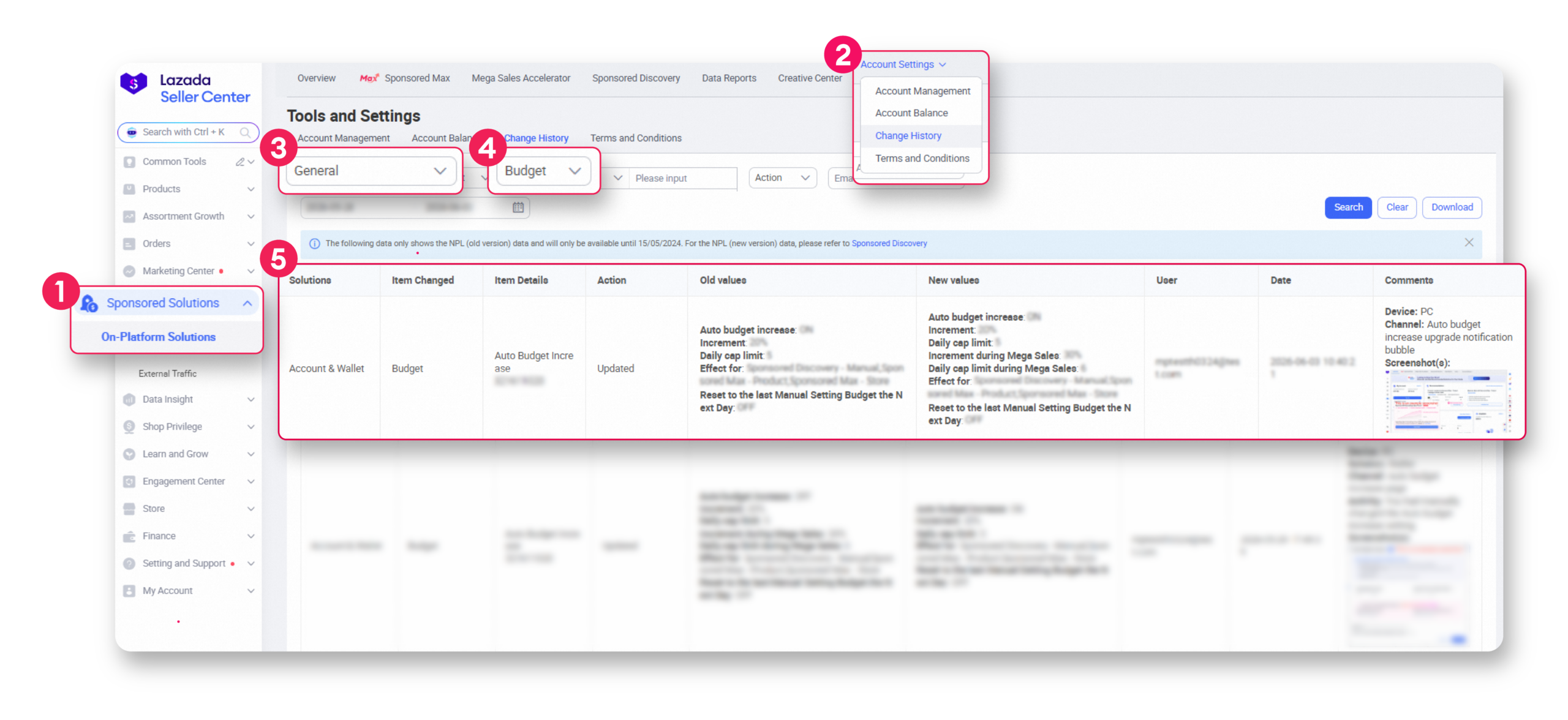
Change History

How to View Auto Budget Increase Change History
1. Go to Lazada Seller Center > Sponsored Solutions > On-platform Solutions.
2. Navigate to the Account Settings and select Change History.
3. Select Solution
4. Select Filter: Campaign
5. View your Auto Budget Increase change records.
Recent stories